Scan the table. Order. Eat.
Customers scan the code on their table, see the menu and order from their own phone, with no sign-up. The restaurant sees every order the moment it is placed.
Apps coming to Android and iPhone. The restaurant dashboard already works in any browser.

For customers
Nothing to register and no waiting to catch someone's eye.
-
Scan the code on your table
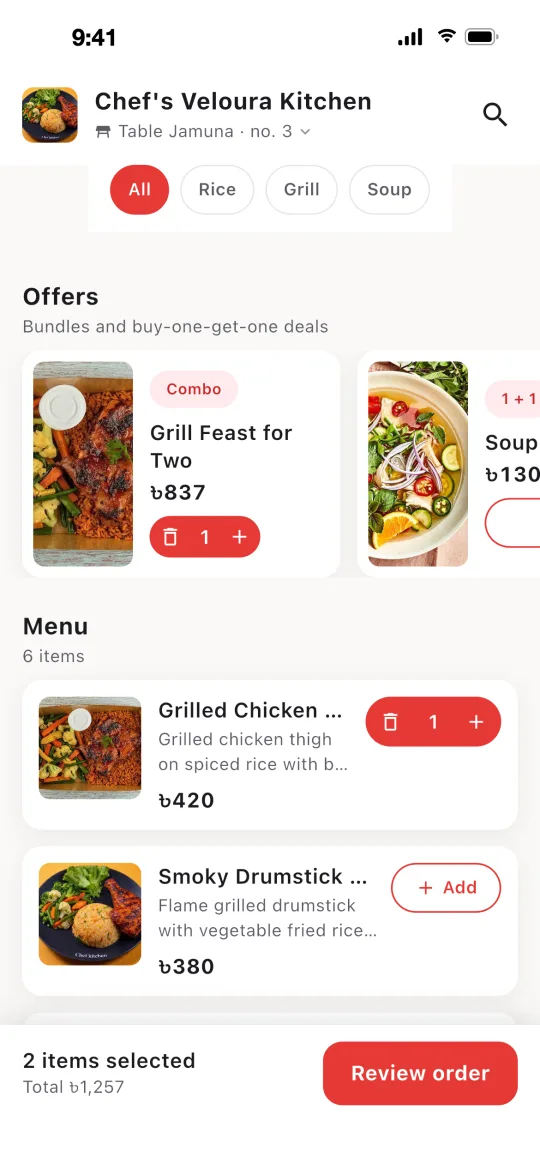
The menu for that restaurant and that table opens straight away, in the Ostisk app or right in the phone's browser.
-
Choose your dishes
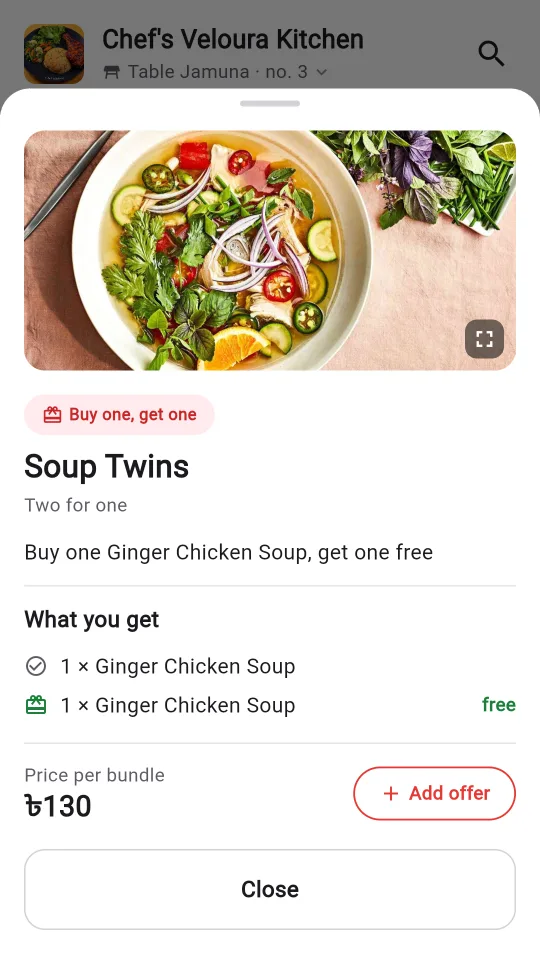
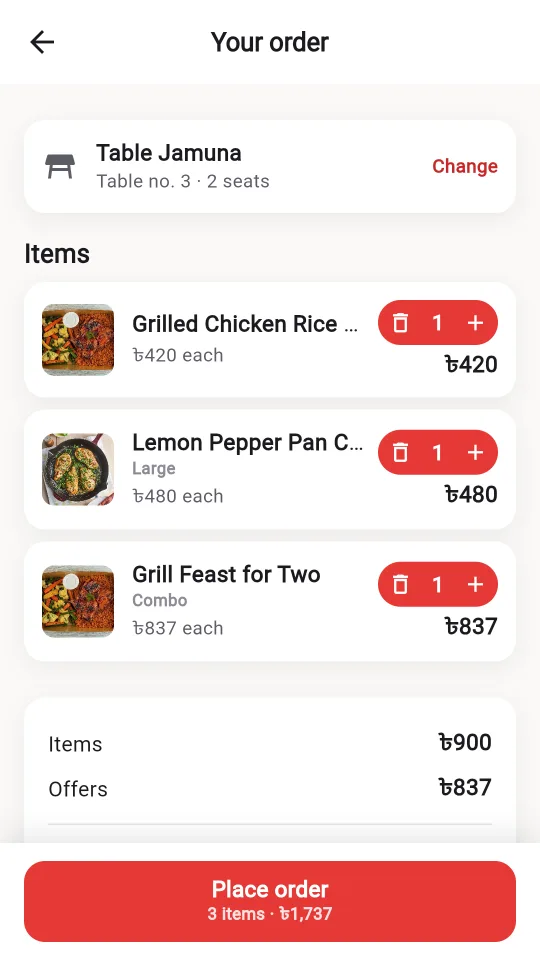
Pick a size for each dish, add offers, and send the order. Add more later in the same meal.
-
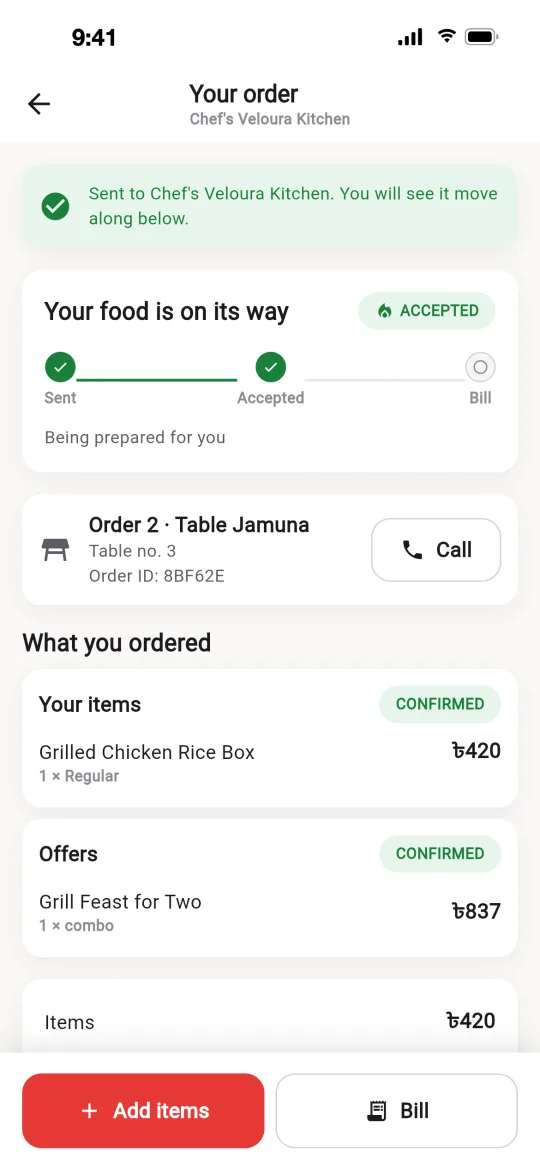
Follow your order
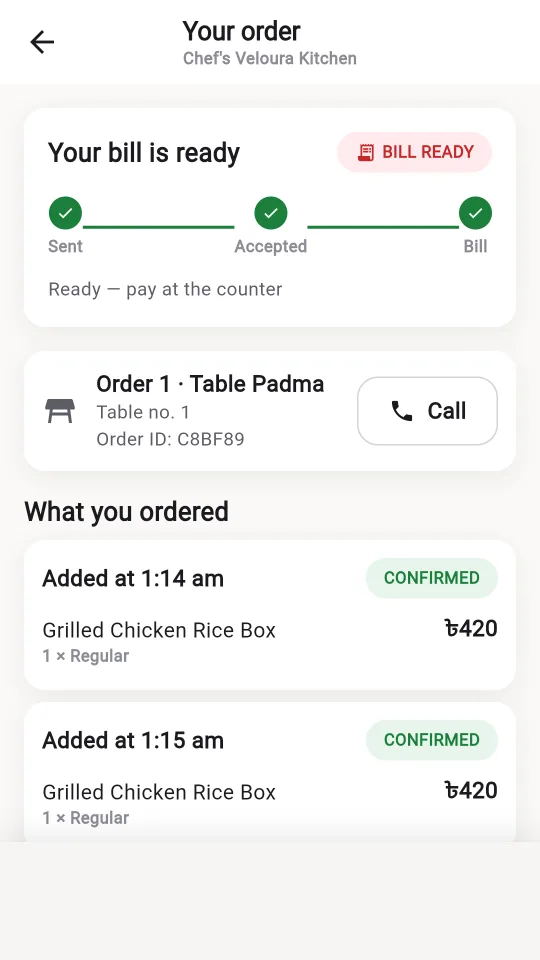
See when the restaurant accepts it, what has been added, and the total so far.

For restaurants
The owner and the waiters work from the same app, each with their own view.
Your menu, your prices
Dishes with photos, categories and up to three sizes: Regular, Large and Family.
Tables with their own code
Create a table, print its code, and every order arrives with the table already on it.
Waiters and their tables
Assign waiters to tables. Each waiter sees and handles the orders for their own.
Offers
Combos at a set price and buy-one-get-one deals, shown at the top of the menu.
Orders as they happen
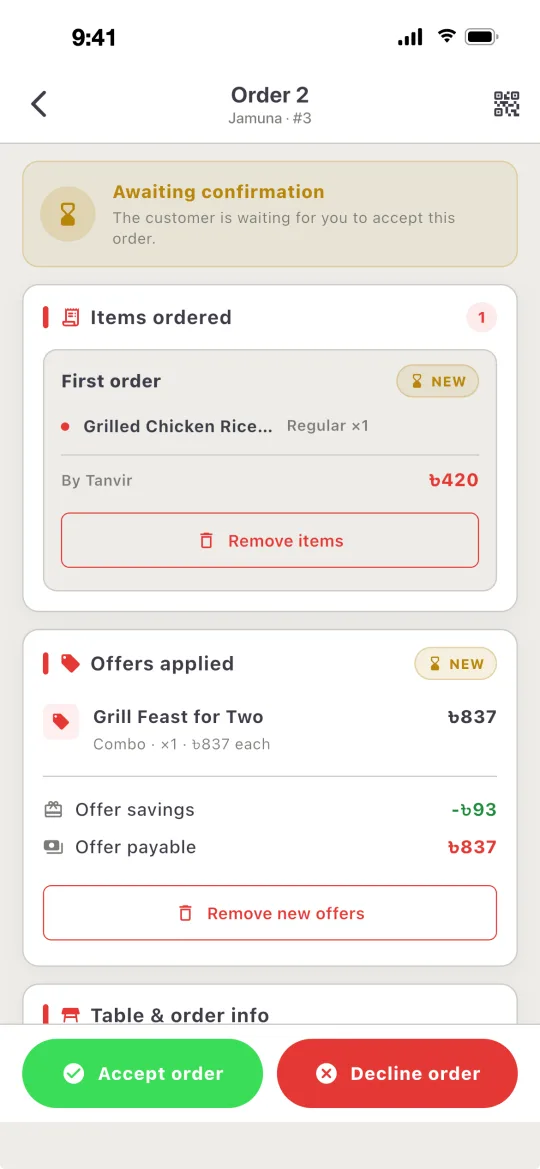
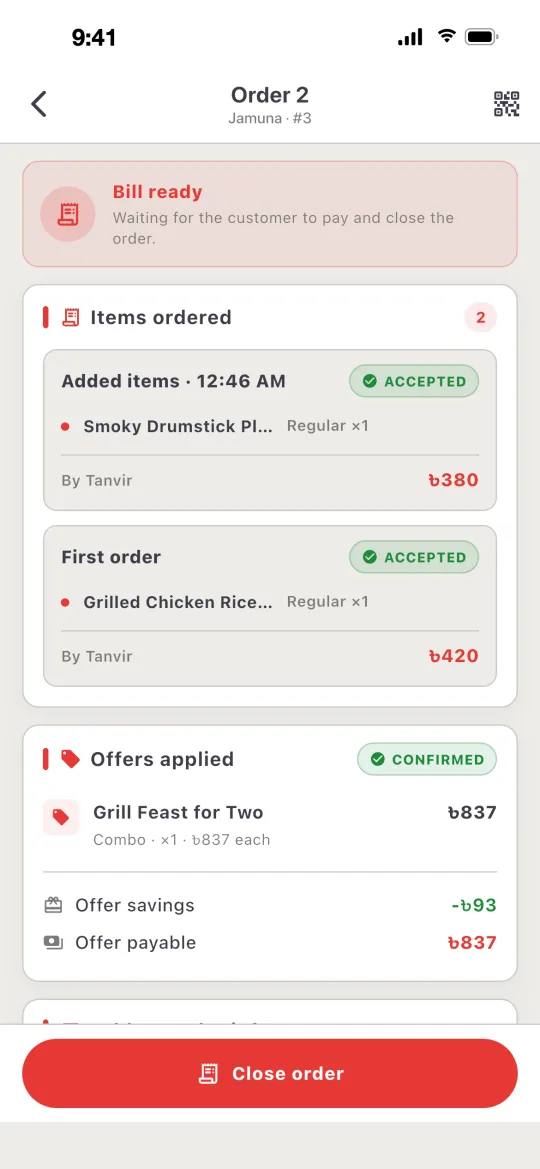
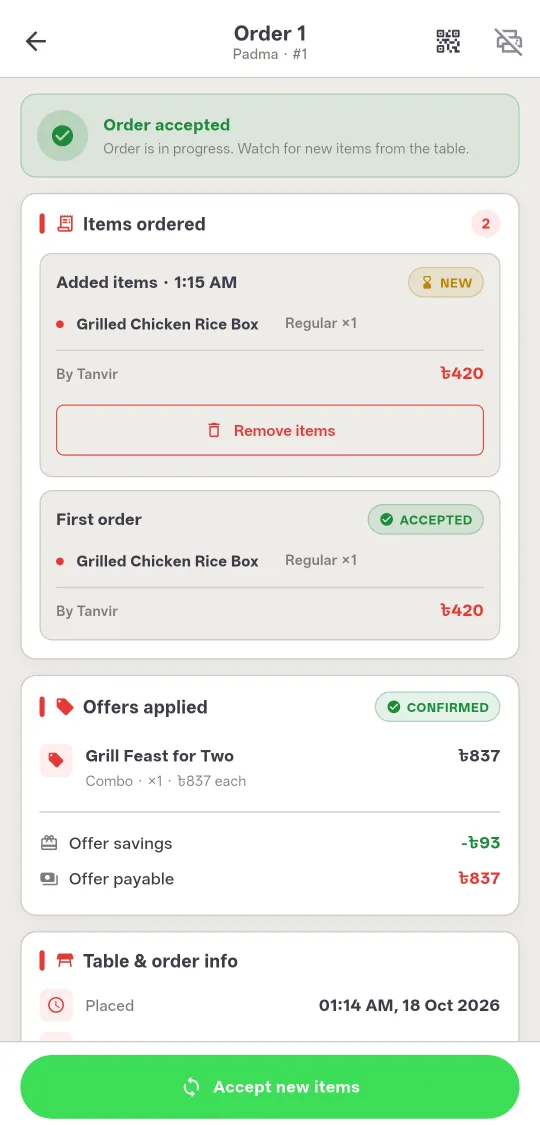
Accept an order, accept items added later, and close it when the table has settled.
Kitchen tickets
Print an order to a Bluetooth thermal printer from an Android phone.
The apps, on iPhone and Android
The same Ostisk on both phones. Guests order and follow their meal; the restaurant's staff accept, add and close orders from their own phones.
iPhone · iOS
Android
The restaurant dashboard, on the web
Open litebiteapp.com/manage on the counter computer or a kitchen screen and sign in with the restaurant's account. Orders appear the moment customers place them, with nothing to install.

Every table at a glance
Each table is a card, coloured by what it needs. Tables with a new order or newly added items come first, so nothing waits unseen.
- Open a table to see each order batch by batch: what was ordered first, what was added later, offers and the order total.
- Accept a new order or the items a table added, and close the order once the table has paid.
- Print the bill on any printer connected to the computer, on 58 mm or 80 mm receipt paper or A4.
- Live status at the top shows when the board last changed, and warns if the connection drops.

Closed orders, day by day
Every finished order, newest first, with each day's count and takings. When a customer comes back about change or an earlier visit, search by the order ID printed on their bill, or by order number, name, phone or table.

The full record of any order
Every item with its time and price, the offers and the total, exactly as served. Print the final bill again whenever a customer asks for a copy.

Tables in one place
Add a table, set its number and seats, and edit it later. Every order arrives with its table already on it.

A QR card for every table
Print a ready-made card with the restaurant name, the table and "Scan to order", or download it as an image for your own design.
Contact
Ostisk is made by Tasman Tech And Trade. To bring it to your restaurant, or for help with an order, call, message or email us.